
Long lines, overworked front-desk staff, and business hours that don't match constituent schedules are common pain points. Manual cash handling also introduces accuracy issues that automated systems simply don't have. Digital touch screen kiosks address all four problems at once.
This article breaks down what these kiosks are, the different types available, real costs, and how government agencies specifically use payment kiosks to modernize bill collection.
Key Takeaways
- Touch screen kiosks let users complete payments, check-ins, and lookups without staff help
- Available formats include freestanding, wall-mounted, countertop, and in-wall configurations
- Pricing runs from about $1,000 for basic indoor displays to $6,000+ for fully configured payment units
- Government agencies use payment kiosks with cash, check, and card acceptance to modernize bill collection
- Riverside County's two kiosks collected $3.01M in seven days, outpacing eight staffed cashier stations at $2.4M
What Is a Digital Touch Screen Kiosk?
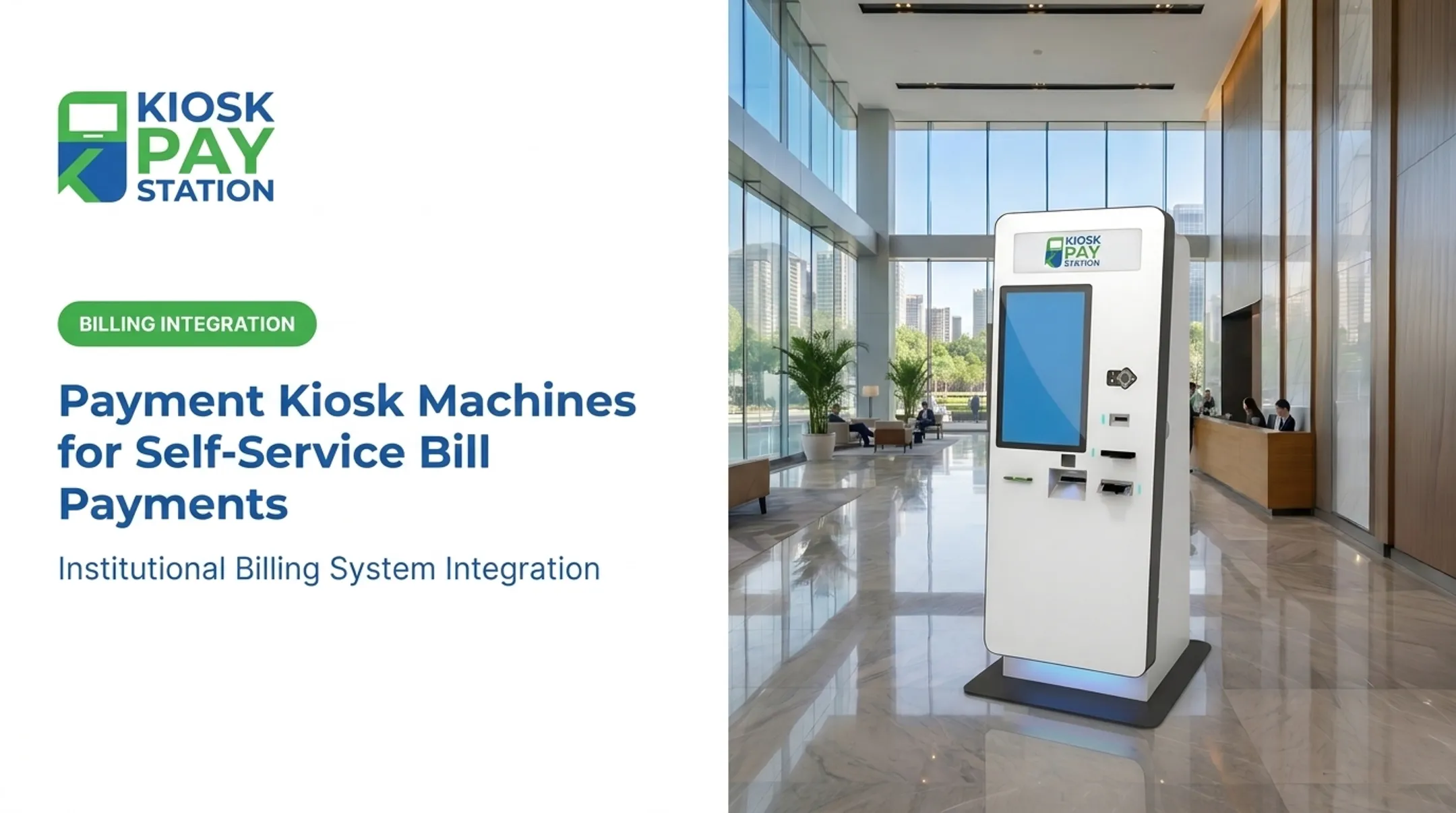
A digital touch screen kiosk is a self-service terminal that combines a touchscreen display, an internal computer, and specialized software so users can complete tasks without staff assistance. Kiosk Group describes this as an interactive computer that lets customers access information or services on their own. In public agencies and utility offices, that often means paying a bill, looking up an account, or completing a transaction outside a staffed counter.
Core hardware components include:
- Touchscreen panel (resistive, capacitive, or infrared depending on durability needs)
- CPU or processor running the kiosk application
- Protective enclosure, often steel for high-traffic or public settings
- Peripherals such as card readers, receipt printers, barcode scanners, and cash acceptors

The Software Layer
The operating system runs in "kiosk mode," so users can't exit to a desktop or install software. Remote management tools let administrators monitor uptime, push updates, and troubleshoot issues without a technician on-site.
Accessibility Isn't Optional
Federal guidance treats kiosks as closed-functionality devices, meaning the operating environment is locked down for public use. The Access Board notes that ADA and ABA standards require devices like ATMs and fare machines to be usable by people with mobility or dexterity limitations. In practice, that means:
- Large touch targets and readable text
- Audio or voice instructions
- Multilingual interface options
- Accessible physical placement and reach ranges
An interactive kiosk is not the same as digital signage. Signage pushes content one way; a kiosk requires two-way engagement—the user inputs something, and the system responds.
Types of Digital Touch Screen Kiosks
Kiosks are generally grouped by physical format first, then by function.
By physical format:
- Freestanding/pedestal — floor-mounted units for lobbies and high-traffic areas
- Wall-mounted — space-saving, fixed installations
- Countertop — smaller units placed on an existing counter
- In-wall/recessed — built into a wall, common for exterior service points
Can a Kiosk Be Outside?
Yes. Outdoor kiosks require IP-rated enclosures to resist dust and water intrusion. Per IEC, outdoor units generally need IP54 at minimum, with IP65 preferred for full dust protection and resistance to low-pressure water jets.
An IP rating alone does not guarantee outdoor readiness. Procurement teams should also confirm:
- High-brightness screens for sunlight readability
- Climate control for temperature swings
- Condensation drainage
- Vandal-resistant housing
Seven Common Functional Types
- Self-service ordering/payment — place orders or complete checkout without staff at the counter
- Information/wayfinding — maps, directories, and on-site guidance in large facilities
- Check-in/ticketing — registration, queue tickets, and admission workflows
- Access control — credential checks and entry management at secured points
- Digital signage/multimedia — interactive content and branded media displays
- Bill-payment — card, cash, or check payments posted against an account balance
- Government/utility payment — taxes, utilities, fines, and municipal fees with agency-specific data capture

Government and utility payment kiosks typically include cash acceptors, exact-change dispensers, and check scanning that standard retail units skip. Choose physical format based on foot traffic, floor space, and whether the unit must run indoors, outdoors, or around the clock.
Key Benefits and Real-World Use Cases
Kiosks take repetitive transactions off staff members' plates, freeing employees for work that actually requires a person, like resolving disputes or handling complex cases. They also run 24/7, letting customers or constituents complete tasks outside a 9-to-5 window.
Where they show up most often:
- Government and utilities — tax, fine, and bill payment
- City halls and public counters — after-hours and overflow collection
- Healthcare — patient check-in and copay flows
- Hospitality — guest registration and account settlement
Those same workload and hours benefits show up clearly in public-sector payment collection.
Riverside County Payment Results
Riverside County deployed two KIOSK PAY STATION units and, over a seven-day period, those two kiosks collected $3,001,000 in tax payments. Eight staffed cashier stations, working the same period, processed $2,400,000. The two kiosks handled more than half of all payments collected, more than the eight staffed counters combined.

Government payment deployments need strong compliance and flexible tender support. PCI-DSS compliance and EMV certification matter for card acceptance, with readers that support tap, dip, and swipe. Agencies often take cash, check, credit, debit, and e-wallet in one flow, and some setups dispense exact change in bills and coins.
The back office gains matter as much as the counter. Automated reconciliation cuts the manual matching work agency staff would otherwise do.
Kiosks can sync with billing systems in real time, by file transfer, or through non-validated data sync. Each transaction can carry custom fields such as department codes, account numbers, or property IDs, which produces export-ready records instead of a stack of receipts someone has to key in by hand.
How Much Does a Touch Screen Kiosk Cost?
Pricing varies widely depending on configuration. Basic indoor touch displays start around $1,000, but that gets you a screen, not a full self-service payment terminal.
| Configuration | Price Range |
|---|---|
| 32-inch touch display | ~$1,080–$1,800 |
| 43-inch touch display | ~$2,660–$3,200 |
| 43-inch podium computer kiosk | ~$6,700 |
| Pre-engineered self-service kiosk | $2,000–$5,000 |
| Kiosk with multiple peripherals | $2,500–$13,000 |

What drives cost up:
- Screen size (32-inch vs. 43-inch)
- Ruggedization for outdoor use (weatherproofing and higher brightness)
- Add-on peripherals: printers, card readers, cash acceptors, ID scanners
- Software, payment compliance (PCI-DSS/EMV), and billing-system integration
- Monitoring, maintenance, and support after install
Hardware is only part of the spend. Full self-service payment setups often cost more once peripherals and backend integration are included. A custom quote tied to your use case—screen, peripherals, and backend connections—is the only reliable way to budget accurately.
Choosing the Right Kiosk for Your Organization
Start by defining the primary purpose. A bill-payment kiosk needs different hardware, software, and compliance controls than a basic check-in or wayfinding unit, so this decision shapes everything that follows.
Then work through these checks:
- Evaluate durability and placement. High-traffic lobbies and outdoor installations both demand tougher enclosures than a low-traffic indoor counter.
- Confirm compliance certifications. For any kiosk handling payments or personal data, PCI-DSS, EMV, and ADA compliance are non-negotiable. PCI's own guidance notes that payment terminals must be reviewed during a PCI DSS assessment regardless of prior device-level validation.
- Check integration compatibility. Real-time, file-based, and non-validated sync options each fit different existing billing systems — confirm which one matches your infrastructure.
- Ask about maintenance support. A multi-year maintenance, monitoring, and component-support plan protects against downtime long after go-live. KIOSK PAY STATION focuses on billing-system integration and ongoing support for government and utility payment environments.
If a vendor cannot answer all four points clearly, pause before you sign anything.
Frequently Asked Questions
What is a touch screen kiosk?
A touch screen kiosk is a self-service terminal with a touchscreen interface used for tasks like payments, check-ins, or information lookup. It combines a display, internal computer, and dedicated software.
What is an interactive kiosk?
An interactive kiosk enables two-way engagement, meaning users input requests and the system responds. This distinguishes it from digital signage, which only displays content.
What are the 7 types of kiosks?
The seven main categories are payment/ordering, information/wayfinding, check-in/ticketing, access control, digital signage/multimedia, bill payment, and specialty government kiosks.
Can a kiosk be outside?
Yes. Outdoor kiosks use IP-rated enclosures (IP54 minimum, IP65 preferred), climate control, and high-brightness screens built to handle weather and sunlight exposure.
How much does a touch screen kiosk cost?
Basic indoor units start around $1,000. Fully configured self-service kiosks with payment or ID modules often run $2,500 to $13,000 depending on peripherals.
How much does a 32-inch or 43-inch touch screen kiosk cost?
32-inch units typically run $1,080–$1,800, while 43-inch units range from $2,660 to over $6,700 depending on peripherals and build. Final cost depends on peripherals, enclosure type, and software configuration.