
Introduction
Installing a payment kiosk isn't plug-and-play. It requires coordinating hardware placement, power and network wiring, payment processor integration, and compliance setup, all before a single constituent taps a card.
Most agencies rely on trained technicians or a certified installation team, working alongside in-house IT and facilities staff.
That coordination matters because poor installation causes real problems: transaction failures, PCI-DSS compliance gaps, ADA accessibility violations, and downtime that sends frustrated residents back to staffed counters.
This guide walks through the complete installation and configuration process for a self-service payment kiosk in a government or public-service setting, from site prep to go-live.
Key Takeaways
- Confirm site prep, power/network readiness, and compliance checks before installation begins
- Complete physical placement, power/network connections, and payment hardware integration on site
- Set up software, account lookup methods, custom data fields, and reporting before accepting live payments
- Run test transactions, ADA checks, and security scans before go-live
- Schedule ongoing maintenance to keep kiosks PCI-DSS compliant and operational long-term
Installation Guide for Payment Kiosks
Payment kiosk installation follows five stages:
- Site preparation
- Physical placement
- Power, network, and payment integration
- Software configuration
- Validation before go-live

A single install usually takes a few hours to a full day, depending on wiring complexity and how deeply the kiosk must integrate with your billing system. Plan on coordination between the installation technician, your IT team, and facilities staff. Skipping any one of these groups tends to create delays later.
Prerequisites and Site Readiness
Before a technician arrives, confirm the physical space and network infrastructure are ready.
Space requirements:
- Sufficient floor or wall space with clear sightlines from entrances
- Room for standalone, countertop, or in-wall configurations depending on traffic volume
- ADA clearance around the kiosk for wheelchair access and approach
Power and network prerequisites:
- A dedicated electrical outlet near the install point
- A wired connection or secured Wi-Fi network
- Firewall and port access configured for payment gateway communication
Compliance prerequisites:
- IT staff should understand PCI-DSS and EMV certification requirements before go-live
- Prefer a pre-certified payment stack so the agency is not building compliance from scratch
KIOSK PAY STATION's integration and support work is built around PCI-DSS compliant, EMV-certified payment processing, which keeps that burden off your internal team.
Non-negotiables: Do not proceed with installation if network security can't be validated, or if the site lacks proper power grounding. These aren't corners worth cutting. A kiosk that goes live on an unvalidated network puts cardholder data at risk from day one.
The PCI Security Standards Council notes that PCI DSS scope includes any entity that stores, processes, or transmits cardholder data — or that could otherwise impact the cardholder data environment. That's a broad net, and it's why network readiness checks happen before hardware goes anywhere near a wall.
How to Install and Configure a Payment Kiosk (Step-by-Step)
Skipping steps in sequence often causes integration failures that only surface after go-live, usually in front of a frustrated constituent. Follow the order below.
1. Position and Secure the Unit
Anchor the kiosk to the floor or wall per manufacturer specifications.
- Standalone units need floor anchoring and enough clearance for high-traffic lobbies
- Countertop units are smaller, cashless, and mount to existing counter surfaces
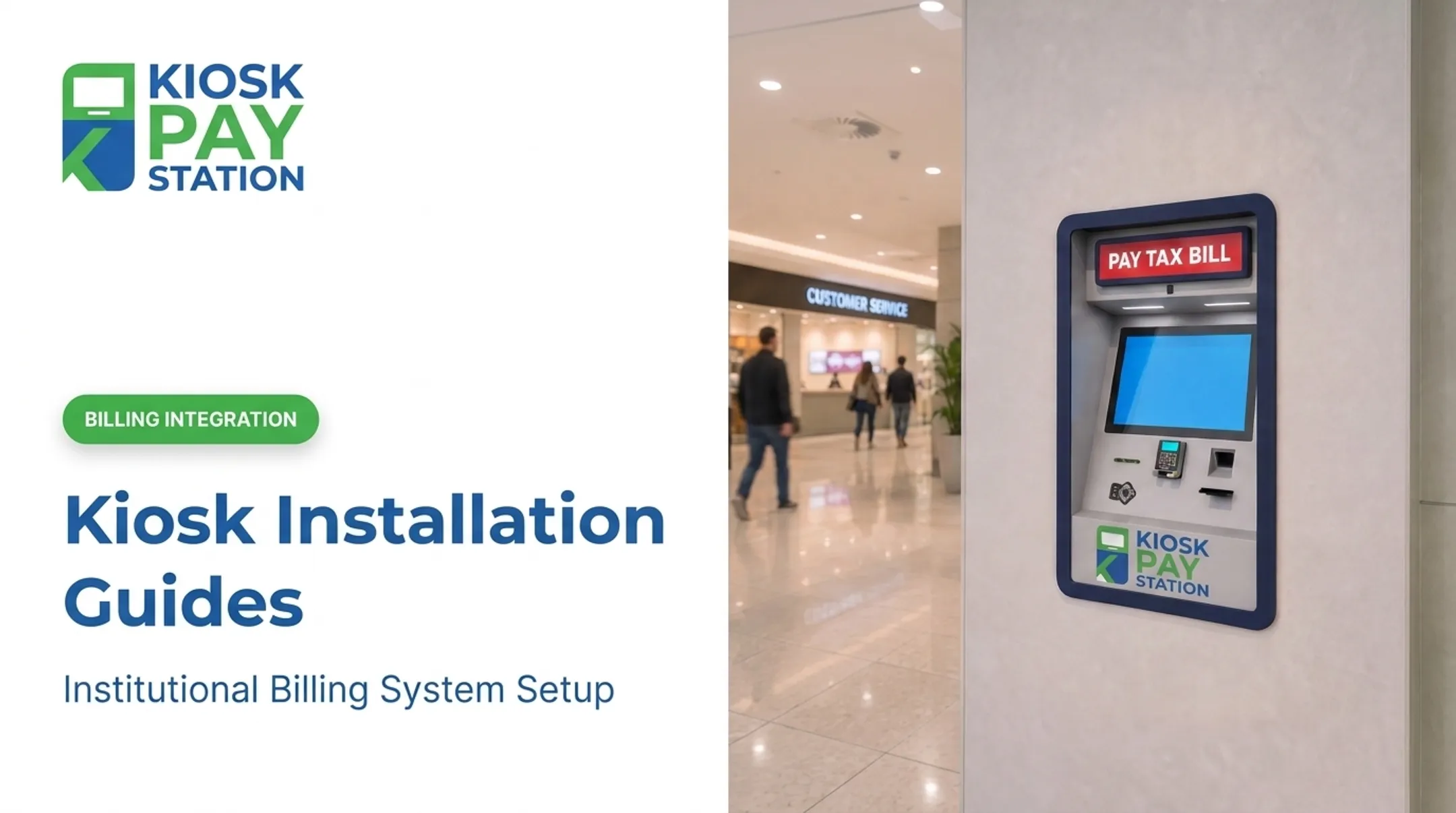
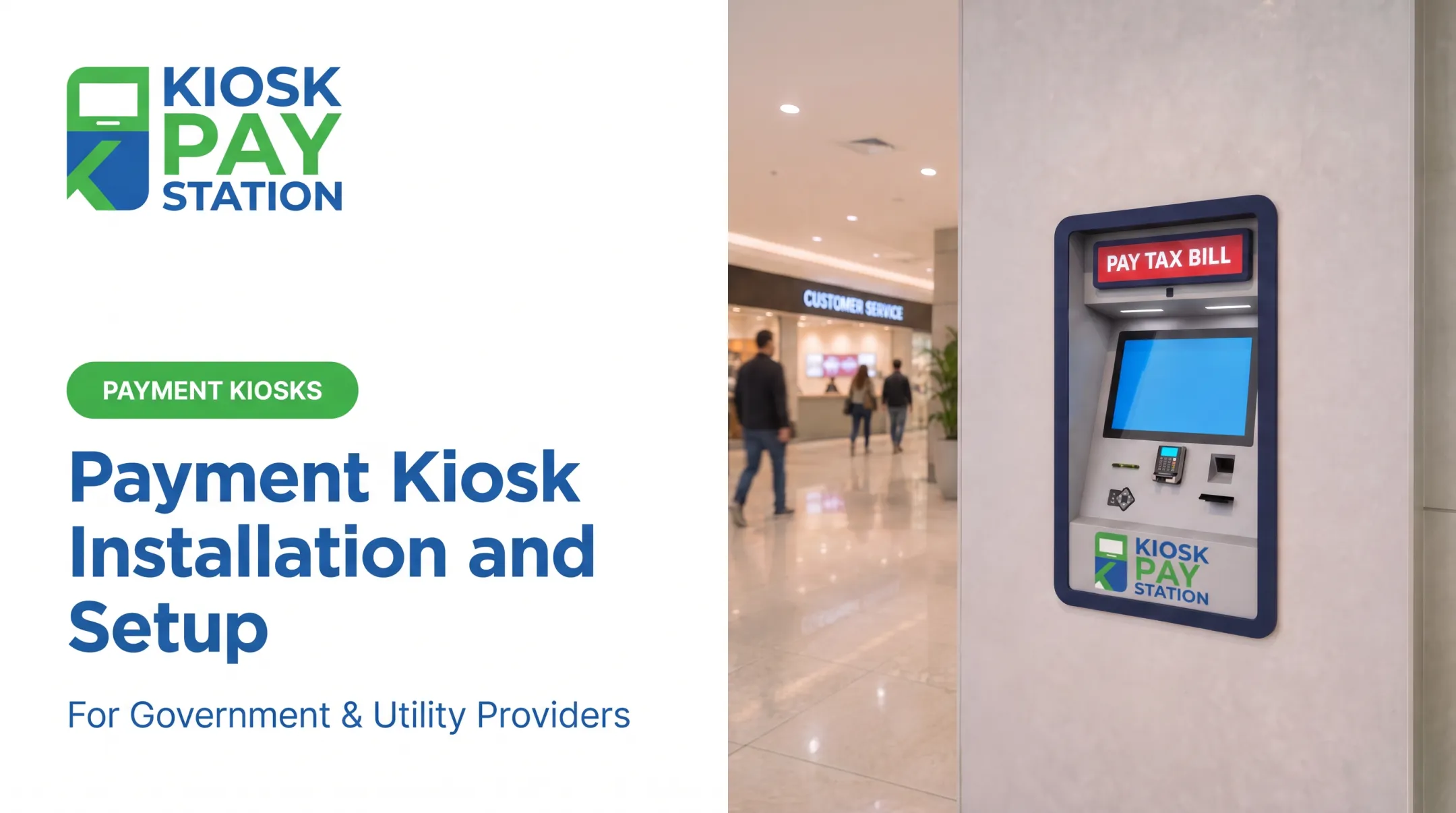
- In-wall units are recessed into permanent installations, including exterior service walls, and require coordination with facilities staff on framing

2. Connect Power, Network, and Cash Hardware
Run power and network cabling, or configure a secure Wi-Fi connection. For standalone units accepting cash, this step also includes installing and testing the cash/coin dispensing mechanism.
3. Integrate with the Agency's Billing System
Kiosks connect to back-end billing or database systems through one of three methods:
- Real-time integration: payment data syncs instantly with accounting, treasury, court, or utility systems, with no manual entry required
- File-based integration: data transfers in batches on a set schedule
- Non-validated integration: a lighter-weight connection option for simpler workflows
Real-time integration is the most common choice for agencies wanting cleaner records and less reconciliation work.
4. Configure Account Lookup and Custom Fields
Set up how constituents will find their bills:
- Invoice number entry
- QR code or barcode scan
- Account number or name lookup
- Custom identifiers specific to the department
Each transaction can also carry custom data elements: department codes, property IDs, or other agency-defined fields that flow into reporting later.

5. Customize the On-Screen Interface
- Apply branding, agency logos, and lobby signage
- Enable multilingual screens for diverse communities
- Calibrate the touchscreen for accuracy before testing begins
Post-Installation Checks and Validation
Never open a kiosk to the public without running it through a full validation pass first. Run test transactions across every accepted payment type:
- Cash
- Card (credit and debit)
- Check
- E-wallet Verify ADA accessibility features work correctly, including touchscreen height, voice guidance, and light instructions. The 2010 ADA Standards set clear operable-part rules:
- Reachable from the required approach
- Operable with one hand, without tight grasping or twisting
- No more than 5 pounds of activation force These are baseline accessibility requirements under U.S. law. Confirm reconciliation reports generate correctly and that data flows accurately into your accounting system. A misconfigured report field now often stays broken until a discrepancy shows up weeks later. Skipping this stage is the most common reason agencies find configuration errors only after constituents report failed payments. By then, trust in the system is much harder to rebuild.

Common Installation Problems and Fixes
Network connectivity failures, account lookup errors, and cash dispenser malfunctions are the most frequent issues technicians encounter after installation.
Issue 1: Kiosk Fails to Connect to Payment Network
Problem: Transactions time out or fail to process.
Likely cause: A firewall is blocking required ports, or the network connection is unstable.
Fix: Verify network configuration with IT and confirm required port access with the kiosk vendor before re-testing.
Issue 2: Account Lookup Returns Errors
Problem: Customers can't locate their bills using invoice number or barcode.
Likely cause: Incomplete integration between the kiosk software and the agency's database.
Fix: Re-verify data mapping and test against sample records before go-live — not after.
Issue 3: Cash/Coin Dispenser Malfunctions
Problem: Standalone units fail to dispense correct change.
Likely cause: Improper mechanical installation or low currency stock.
Fix: Confirm mechanical calibration during setup and set a routine currency restocking schedule. Customizable low-cash alerts help you restock before the unit runs empty.
Pro Tips for Installing Payment Kiosks Effectively
A few habits separate smooth deployments from painful ones:
- Schedule installation during low-traffic hours so you can run thorough testing before public exposure
- Document every configuration setting and integration credential: future troubleshooting depends on this record existing
- Plan multi-year onsite maintenance, not break-fix alone. KIOSK PAY STATION supports institutional clients with monitoring, maintenance, and component coverage that cuts long-term downtime risk
- Involve IT security staff early to pre-approve network and firewall changes needed for PCI-DSS compliant payment processing
Riverside County shows what strong deployment looks like in practice. Two self-service kiosks collected $3.01 million over seven days—more than half of all payments that week.
Eight staffed cashier stations processed $2.4 million in the same period. The county's finance director credited the kiosks with shorter lines and better customer service.
Conclusion
Correct installation and configuration directly affect transaction accuracy, compliance, and constituent trust in self-service payment access. A kiosk that's rushed through setup will show it: through failed transactions, ADA gaps, or reconciliation headaches that pile up over months.
Agencies that follow a disciplined preparation, installation, and validation process avoid most of these problems entirely. For teams without the bandwidth to manage configuration, validation, and ongoing support end-to-end, a partner experienced in government and utility billing integration—such as KIOSK PAY STATION—removes much of that risk from day one.
Frequently Asked Questions
What is hardware installation?
Hardware installation refers to physically setting up and connecting a device's components, such as a payment kiosk's touchscreen, card reader, and network hardware, so they function together correctly.
What payment kiosk configurations are available?
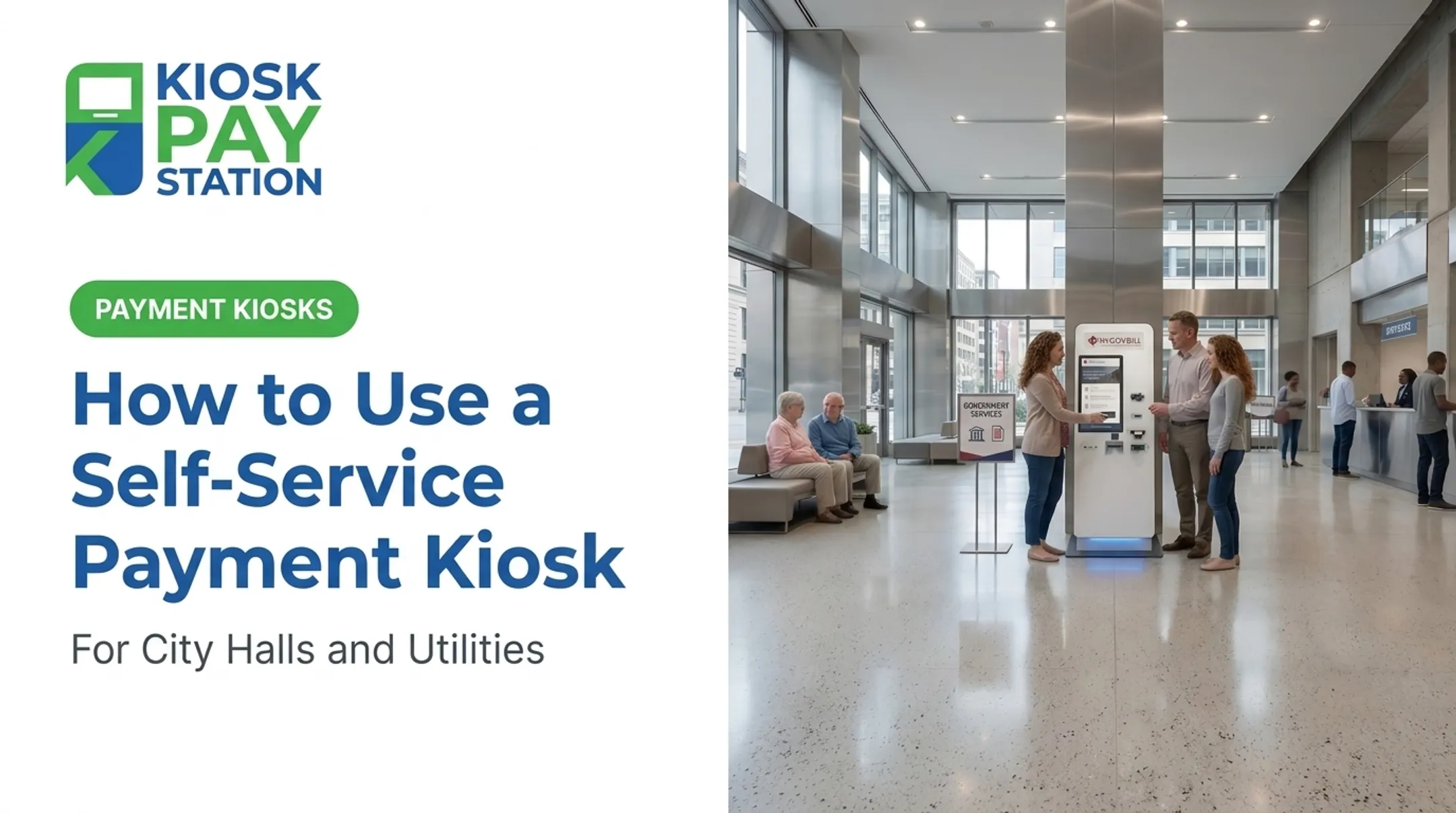
Payment kiosks typically come in standalone, countertop, and in-wall configurations. Each fits different space constraints and traffic needs, from high-volume lobbies to smaller counter areas.
How long does it take to install a payment kiosk?
Most single-unit installations take a few hours to a full day, depending on network complexity and how deeply the kiosk needs to integrate with existing billing systems.
Do payment kiosks need a dedicated internet connection?
Yes. A stable, secured wired or Wi-Fi connection is required for real-time payment processing and accurate daily reconciliation.
Are payment kiosks ADA compliant?
Properly installed kiosks include accessible touchscreen heights, voice guidance, and light instructions to meet ADA requirements. Confirm accessibility during post-installation validation.
Who should install a government payment kiosk?
A vendor's certified installation team, working alongside in-house IT staff, ensures proper compliance and integration. KIOSK PAY STATION's team handles installation and configuration for institutional clients as part of onboarding.